
25 ChatGPT Work Webhook Prompts for Gmail, Slack, and GitHub Automation
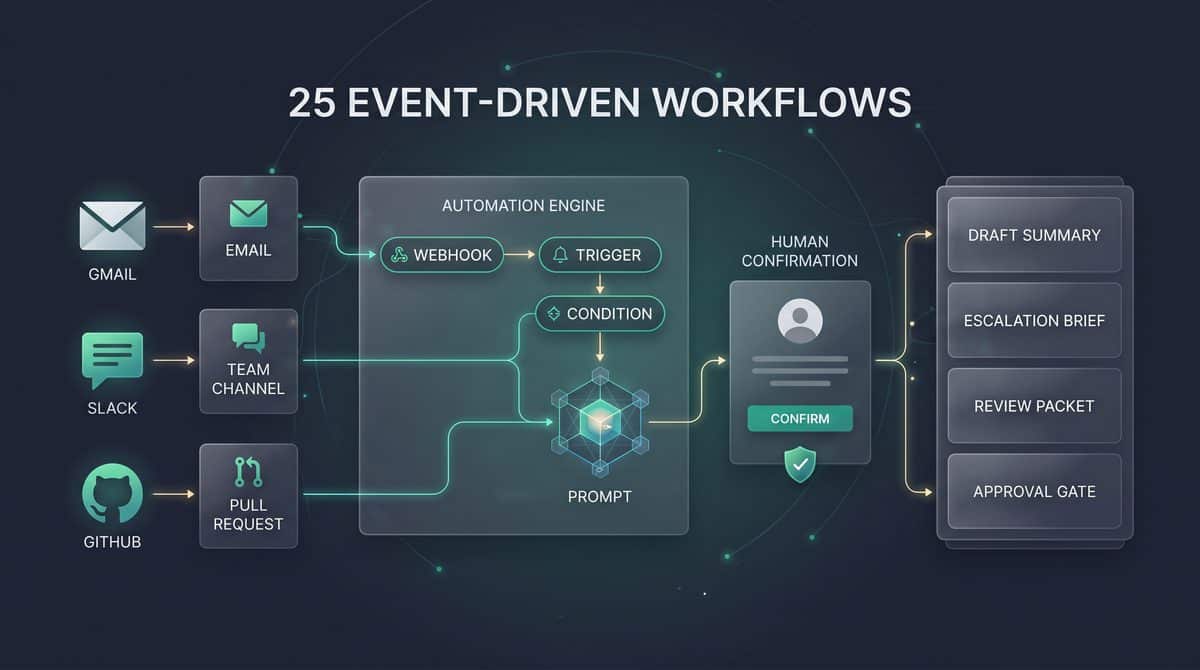

How ChatGPT Work webhook prompts turn inbox, channel, and pull-request activity into reviewable automation
On August 25, 2026, OpenAI added event-triggered scheduled tasks to ChatGPT Work for new Gmail messages, Slack channel messages, and GitHub pull-request activity. The practical change is that a task no longer has to run only on a clock; it can run when a supported external event occurs, such as a matching email arriving, a message appearing in a Slack channel where @ChatGPT has been added, or supported pull-request activity occurring in an authorized GitHub repository. This article’s prompt patterns are written for that event-triggered model, not for generic chatbot conversations or unattended background agents.
The ChatGPT Scheduled Tasks decision in 25 ChatGPT Work Webhook Prompts for Gmail, Slack, and GitHub Automation is easier to apply when teams also understand How to Set Up ChatGPT Scheduled Tasks for Automated Daily Briefings, Reports, and Workflow Triggers. That article focuses specifically on how to Set Up ChatGPT Scheduled Tasks for Automated Daily Briefings, Reports, and Workflow Triggers, providing the adjacent implementation, comparison, or governance context needed to use this section without treating the two topics as interchangeable.
These prompts are most useful when the work item has a repeatable decision pattern but still benefits from human review. Examples include summarizing customer escalations from Gmail, turning Slack incident updates into a concise handoff note, or preparing a GitHub pull-request review checklist. They are less appropriate for irreversible actions, broad surveillance, or workflows where every event requires complex judgment from multiple systems that ChatGPT cannot access through the connected app permissions you have granted.
Operational rule: design each webhook prompt as a bounded assistant action, not as an autonomous employee. If the task would send a message, make a reservation, approve a purchase, delete data, change permissions, or otherwise produce a consequential external effect, expect the workflow to pause for human approval rather than silently complete.
Eligible plans and supported trigger sources
OpenAI’s official event-triggered task help lists eligible users as Plus, Pro, Business, Enterprise, Edu, and certain Healthcare workspaces. Free and Go users cannot create event-triggered tasks; Free users can create up to three active scheduled tasks, but not webhook-triggered tasks. FedRAMP workspaces do not support event-triggered tasks. If you administer a workspace, verify both plan eligibility and workspace policy before distributing any of the prompt templates in this article.
| Trigger source | Supported event pattern from OpenAI’s documentation | Setup detail that changes prompt design |
|---|---|---|
| Gmail | New messages, with filtering by sender or subject. | Use sender and subject filters to reduce runs before the prompt executes; do not rely on the prompt alone to discard high-volume mail. |
| Slack | New channel messages. | @ChatGPT must be added to each Slack channel that the task monitors, so prompts should name the specific channel purpose and expected message types. |
| GitHub | Supported pull-request activity in an authorized github.com repository. | Write prompts around pull-request context and repository permissions; do not assume access to repositories or branches the connected account cannot read. |
Setup begins by connecting a supported app under Settings > Apps, then describing the trigger and desired action in ChatGPT Work, reviewing the generated Trigger / Condition / Prompt configuration, and managing the task under Scheduled. OpenAI’s August 25 ChatGPT release notes specifically state that Plus and Pro users can create webhook-triggered tasks in Work on web, iOS, and Android. OpenAI’s help documentation also lists Business, Enterprise, Edu, and certain Healthcare workspaces as eligible, while excluding Free, Go, and FedRAMP workspaces for webhook-triggered task creation.
For Gmail-heavy workflows, the August 28, 2026 release that added support for connecting multiple Google accounts across Gmail, Google Calendar, and Google Contacts can matter. OpenAI says this multi-account capability applies to supported Plus, Pro, Business, and Enterprise plans on web, desktop, iOS, and Android. When adapting a Gmail prompt, explicitly identify whether the task is intended for a personal account, work account, shared mailbox pattern, or a specific sender/subject filter; otherwise, users with multiple connected Google accounts may create automations that are technically valid but operationally ambiguous.
The Trigger / Condition / Prompt model in practice
The trigger should answer one narrow question: “What external event starts the task?” A good Gmail trigger might be “new Gmail message from [email protected] with subject containing Invoice,” while a poor trigger is “new Gmail message.” A good Slack trigger might be “new message in #incident-updates after @ChatGPT has been added,” while a poor trigger is “anything in Slack.” A good GitHub trigger might be “pull-request activity in this authorized repository,” while a poor trigger assumes organization-wide visibility without confirming the connected account’s repository access.
The condition should answer a second question: “Should this specific event be acted on?” Conditions are where you suppress false positives, protect sensitive categories, and prevent repetitive alerts. For example, a Gmail task can conditionally continue only when the sender is a known vendor and the subject matches a billing keyword. A Slack task can continue only when a message contains an incident severity marker or a deployment status phrase. A GitHub task can continue only when the pull request is not a draft, references a tracked component, or includes files that match a review area named in the prompt.
The prompt should answer the third question: “What should ChatGPT produce, and what must it not do without approval?” A strong prompt specifies output format, audience, evidence requirements, confidence limits, and approval behavior. For example, “Create a three-bullet triage summary and draft, but do not send, a reply for approval” is safer than “Handle this email.” Similarly, “Prepare a pull-request review checklist with files to inspect and questions for the author” is safer than “Review and approve the PR,” because approval is a consequential action that must remain subject to human control.
Example prompt skeleton for adaptation:

Trigger:
When [APP EVENT] occurs in [ACCOUNT / CHANNEL / REPOSITORY] matching [FILTER].

Condition:
Continue only if [BUSINESS RULE]. Stop if the event contains [SENSITIVE CATEGORY],
is unrelated to [TEAM / PROJECT], or lacks enough context to produce a reliable result.

Prompt:
Summarize the event for [AUDIENCE] in [FORMAT].
Use only information available from the triggered item and connected app context.
Flag missing information instead of guessing.
If a reply, status update, merge action, deletion, purchase, permission change,
or other consequential action is needed, draft it for approval and pause.
This skeleton is a recommendation, not an OpenAI product field schema beyond the documented Trigger / Condition / Prompt review model. Use it as a safe drafting pattern when translating the 25 prompts later in this article into your own workspace. The important discipline is to keep the event selector, the business rule, and the generated output separate enough that an administrator or teammate can audit why the task ran and what it was allowed to do.
Approval gates are a feature, not a nuisance
OpenAI’s release notes and help documentation state that consequential actions pause for approval. In operational terms, that means these prompts should be written to produce drafts, summaries, checklists, labels, or recommendations when the next step affects other people, money, access, data retention, or external systems. A Gmail prompt can draft a vendor reply, but the user should approve sending it. A Slack prompt can prepare an incident status update, but posting into a channel may require confirmation. A GitHub prompt can suggest review comments or next steps, but merging, closing, or changing repository state should be treated as approval-gated.
Do not fight the approval model by phrasing prompts as if the task can bypass confirmation. A prompt that says “send automatically without asking” is not a reliable control and conflicts with the documented safety behavior for consequential actions. A better pattern is to name the approval point: “If the next step is to contact the sender, draft the response and pause for my approval,” or “If the pull request appears ready, prepare a merge recommendation with the reasons, but do not approve or merge.” This produces usable automation while preserving the human decision boundary.
Shared tasks create recipient-owned copies
Shared scheduled tasks are not a way to lend someone your app access, history, identity, credentials, files, memories, or prior task outputs. OpenAI’s help documentation states that shared tasks create independent copies for recipients, and recipients use their own permissions and connected apps. The shared copy does not expose the creator’s identity, chat history, prior results, memories, custom instructions, files, connected-app data, or credentials. This matters for founders and enterprise administrators because a prompt library can be distributed safely only if every recipient still connects and authorizes their own Gmail, Slack, or GitHub context.
The ChatGPT Work Automation decision in 25 ChatGPT Work Webhook Prompts for Gmail, Slack, and GitHub Automation is easier to apply when teams also understand The ChatGPT Work Automation Playbook: 12 Prompts for Document Workflows, Slide Decks, and Website Prototypes. That article focuses specifically on the ChatGPT Work Automation Playbook: 12 Prompts for Document Workflows, Slide Decks, and Website Prototypes, providing the adjacent implementation, comparison, or governance context needed to use this section without treating the two topics as interchangeable.
Rate limits and noise budgets
Event-triggered tasks can run up to 30 times per hour and 720 times per day across all such tasks. Treat those figures as an account-level noise budget, not as a target. A task that reacts to every Slack message in a busy channel can consume runs quickly and produce low-value output; a task that triggers only on incident markers, customer names, repository labels, or sender/subject filters is more likely to remain useful. If multiple teams share a workspace pattern, standardize filters before sharing prompts so every recipient does not recreate the same noisy automation independently.
A practical rate-aware design starts upstream. For Gmail, use sender and subject filters where possible. For Slack, add @ChatGPT only to channels where the team has agreed on the automation purpose, and write conditions that ignore chatter, acknowledgments, and bot-generated loops. For GitHub, scope tasks to authorized repositories and pull-request activity that matches the review workflow. The prompt should also include a stop rule such as “If this event is a duplicate, acknowledgment-only message, or lacks actionable content, return ‘No action needed’ with one reason.”
How to adapt each prompt template safely
Before using any template, replace placeholders with concrete operational values: the Gmail sender domain, the Slack channel name, the GitHub repository, the team role receiving the output, and the exact approval boundary. Do not paste secrets, API keys, passwords, private financial identifiers, or unnecessary personal data into the title or instruction text. For Healthcare workspaces, follow your organization’s approved policy and do not use these examples to route protected health information through unsupported webhook workflows.
- Start with the app permission boundary. Confirm the connected account can access only the Gmail mailbox, Slack channel, or GitHub repository needed for the task.
- Narrow the trigger before writing a clever prompt. Sender, subject, channel, and repository scope reduce unnecessary executions more reliably than after-the-fact summarization.
- Add a condition that rejects unsafe or irrelevant events. Include stop rules for unrelated content, duplicates, sensitive categories, and insufficient context.
- Specify the output artifact. Ask for a draft reply, triage note, escalation summary, review checklist, or decision memo rather than a vague “handle this.”
- Name the approval gate. State which actions must be drafted only and paused for human approval.
- Test with low-risk events. Use a non-sensitive sender, a quiet Slack channel, or a test pull request before applying the prompt to production workflows.
The 25 prompts that follow use this same structure: a trigger idea, a condition, a prompt body, and an approval or failure-handling note. They are examples and recommendations for adapting ChatGPT Work’s documented event-triggered task capability; they are not a claim that every workspace, repository, channel, account, or regulated workflow will support the same setup. The safest implementation is the one where a teammate can read the task configuration and immediately understand what event starts it, why it continues, what it produces, and where human approval takes over.
Prompts 1–10: Reviewable webhook workflows for Gmail, Slack, and GitHub
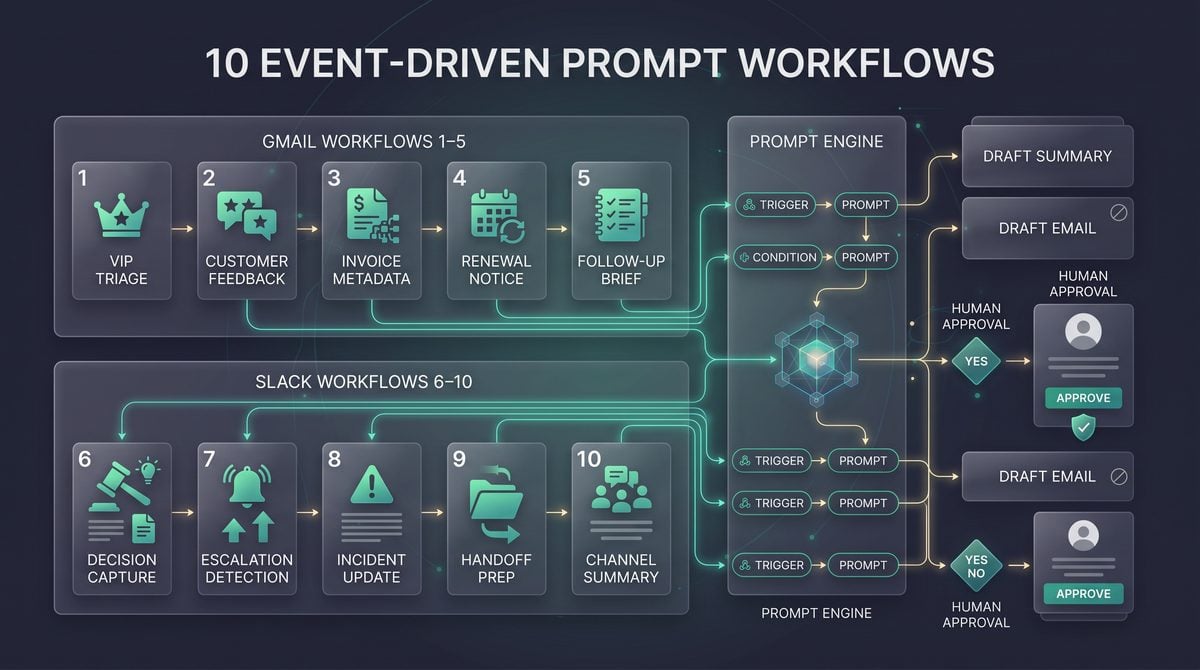
The following prompts are written for ChatGPT Work event-triggered scheduled tasks, where supported Gmail, Slack, and GitHub activity can start a task. Treat each prompt as an operational template: set the trigger in Work, review the generated Trigger / Condition / Prompt fields, connect only the app account the task needs, and expect consequential actions to pause for approval rather than execute silently.
The Gmail Automation Prompts decision in 25 ChatGPT Work Webhook Prompts for Gmail, Slack, and GitHub Automation is easier to apply when teams also understand 25 ChatGPT Prompts for AI-Powered Email Management: Inbox Zero, Smart Replies, Follow-Up Tracking, and Email Workflow Automation. That article focuses specifically on 25 ChatGPT Prompts for AI-Powered Email Management: Inbox Zero, Smart Replies, Follow-Up Tracking, and Email Workflow Automation, providing the adjacent implementation, comparison, or governance context needed to use this section without treating the two topics as interchangeable.
The Slack Workflow Automation decision in 25 ChatGPT Work Webhook Prompts for Gmail, Slack, and GitHub Automation is easier to apply when teams also understand How to Build a Multi-Agent Workflow with ChatGPT Work and GPT-5.6 Terra — Connecting Gmail, Slack, and GitHub for Automated Project Management. That article focuses specifically on how to Build a Multi-Agent Workflow with ChatGPT Work and GPT-5.6 Terra — Connecting Gmail, Slack, and GitHub for Automated Project Management, providing the adjacent implementation, comparison, or governance context needed to use this section without treating the two topics as interchangeable.
| Prompt | Primary trigger source | Main output | Approval-sensitive action |
|---|---|---|---|
| 1–5 | Gmail new messages | Triage, alerts, feedback summaries, routing recommendations, renewal checklists | Sending replies, forwarding, filing invoices, canceling or renewing services |
| 6–9 | Slack channel messages | Decision logs, escalation drafts, incident updates, support handoff notes | Posting messages, notifying executives, paging responders, assigning owners |
| 10 | GitHub pull-request activity | Engineering handoff brief | Approving, merging, closing, or changing pull requests |
1. Gmail triage for actionable inbox messages
Use case: Use this when a shared or personal work inbox receives mixed traffic and you want ChatGPT Work to separate urgent action items from FYI messages. Configure the Gmail trigger for new messages, then narrow it with sender domains or subject terms such as “request,” “approval,” “contract,” or “follow-up” instead of scanning every newsletter and notification.
Copy-ready prompt:
When a new Gmail message matches this task trigger, triage it without sending any reply.

Return:
1. One-sentence summary.
2. Category: Urgent action, Standard action, Waiting on someone else, FYI, or Noise.
3. Requested action, if any.
4. Suggested owner based only on the message content and the owner map below.
5. Suggested next step as a draft instruction, not an executed action.
6. Confidence: High, Medium, or Low.
7. Reason for confidence.

Rules:
- Do not mark the email read, archive it, label it, forward it, or reply.
- If the message contains credentials, payment details, personal identifiers, or legal claims, summarize only the operational issue and say "sensitive content present."
- If confidence is Low, recommend manual review.

Owner map:
[TEAM_OR_OWNER_MAP]
Why it works: The prompt separates classification from action, which suits event-triggered tasks because the model can produce a reviewable result every time a matching email arrives. The confidence field gives operators a quick way to decide whether to trust the categorization or open the email directly.
Safety/approval note: This prompt explicitly blocks email replies, forwarding, archiving, and labeling. If you later add a connected action that changes Gmail state or sends a message, treat it as consequential and require human approval before execution.
Customization fields:
[TEAM_OR_OWNER_MAP]: map topics such as “billing,” “security,” “enterprise sales,” and “support escalation” to named teams or aliases.- Trigger sender filter: use trusted domains, VIP senders, or internal distribution lists.
- Subject filter: start narrow, then expand only after reviewing false positives.
2. VIP Gmail alert with a concise response brief
Use case: Use this for executives, strategic customers, board members, investors, or regulated account owners whose messages require fast awareness. Configure the Gmail trigger with sender filters for the exact VIP addresses or domains; do not rely on the model to infer VIP status from a broad inbox.
Copy-ready prompt:
When a new Gmail message arrives from a sender covered by the VIP list, prepare a VIP alert brief.

Output:
- VIP sender name and organization, if visible.
- Email subject.
- Why this may need attention in one sentence.
- Deadline or requested timing, if stated.
- Suggested internal owner.
- Draft acknowledgement of no more than 60 words.
- Open questions that must be answered before responding.

Rules:
- Do not send the acknowledgement.
- Do not include private email threads unless needed for the immediate decision.
- If the message asks for a commitment, discount, legal position, security answer, or payment action, mark "approval required."
- If the message is automated or promotional, downgrade to "no VIP action."
Why it works: VIP alerts often fail when they forward too much context or too little context. This prompt produces a compact decision brief and a draft acknowledgement while preserving the human decision point for commitments, pricing, legal statements, or payment-related issues.
Safety/approval note: Acknowledgements can create expectations, and commitments can bind teams operationally even when they are not legal contracts. Keep the task in draft mode and approve any outgoing message manually.
Customization fields:
- VIP list: exact addresses, domains, or named contacts.
- Owner rules: map each VIP account to an account executive, customer success manager, founder, or executive sponsor.
- Downgrade rules: define automated senders such as billing robots, webinar systems, and ticket notifications.
3. Gmail customer feedback extraction for product teams
Use case: Use this when customers send feature requests, complaints, praise, churn warnings, or usability reports by email. Configure the Gmail trigger by subject terms such as “feedback,” “feature request,” “bug,” “problem,” “cancel,” or by sender addresses associated with customer-facing teams.
Copy-ready prompt:
When a new Gmail message appears to contain customer feedback, extract a product feedback record.

Return a structured record:
- Feedback type: Bug, Feature request, Usability issue, Pricing concern, Reliability concern, Praise, Churn risk, or Other.
- Product area.
- Customer impact in one sentence.
- Exact customer wording: include only the shortest useful quote.
- Severity: Critical, High, Medium, or Low.
- Evidence included: screenshot, reproduction steps, error text, account context, or none.
- Recommended destination team.
- Follow-up question, if needed.

Rules:
- Do not create tickets or update external systems automatically.
- Do not include full email signatures, phone numbers, billing details, or unrelated personal information.
- If the message includes security, legal, or medical content, flag for specialist review and minimize the quote.
Why it works: Product teams need normalized records, not forwarded email walls. The prompt captures product area, impact, severity, and evidence while retaining a short customer quote that preserves the original signal without copying unnecessary personal data.
Safety/approval note: Do not route sensitive or regulated content into general product backlogs without review. The prompt instructs the model to minimize quoted material and to flag security, legal, or medical content for specialist handling.
Customization fields:
- Product-area taxonomy: use your actual modules, packages, apps, or services.
- Severity rubric: define what “Critical” means, such as production outage, data loss, or blocked renewal.
- Destination teams: map feedback types to product, support, success, engineering, or security intake.
4. Gmail invoice routing without exposing sensitive data in the output
Use case: Use this for accounts payable intake where vendor invoices arrive by email and need routing, not autonomous payment. Configure the Gmail trigger by sender domains, subject terms such as “invoice,” “receipt,” “statement,” or “payment due,” and keep the task restricted to the mailbox that is authorized to receive finance documents.
Copy-ready prompt:
When a new Gmail message appears to contain an invoice, create a redacted routing summary.

Output:
- Vendor name.
- Sender domain.
- Invoice purpose or category, if clear.
- Due date, if present.
- Amount status: state currency and amount only if needed for routing; otherwise use range: under [LOW_THRESHOLD], [LOW_THRESHOLD]-[HIGH_THRESHOLD], or over [HIGH_THRESHOLD].
- Purchase order or internal reference: present / not present. Do not reproduce the full value.
- Recommended approver or queue.
- Missing information.
- Risk flags: new vendor, changed payment instructions, overdue, duplicate-looking, tax document, or urgent-payment language.

Rules:
- Do not include bank account numbers, tax IDs, full invoice numbers, card numbers, addresses, or payment links.
- Do not forward the email, approve the invoice, schedule payment, or click links.
- If payment instructions changed, mark "manual finance review required."
Why it works: The task extracts enough metadata to route work while intentionally suppressing sensitive payment details. The “changed payment instructions” flag is important because invoice fraud often depends on urgency and altered payment destinations.
Safety/approval note: This is a routing prompt, not a payment workflow. Payments, vendor changes, forwarding finance documents, or approving invoices should remain outside automatic execution and require finance approval.
Customization fields:
[LOW_THRESHOLD]and[HIGH_THRESHOLD]: use internal approval bands rather than publishing exact finance policy in a shared task title.- Approver map: route by department, vendor category, subsidiary, or budget owner.
- Known vendor list: include only non-sensitive vendor names or domains needed for routing.
5. Gmail renewal notice tracker for subscriptions and contracts
Use case: Use this when SaaS subscriptions, insurance policies, domains, support contracts, or vendor agreements send renewal notices by email. Configure Gmail subject filters such as “renewal,” “auto-renew,” “expiration,” “contract ending,” “price change,” or “terms update.”
Copy-ready prompt:
When a new Gmail message appears to be a renewal or expiration notice, prepare a renewal review card.

Return:
- Vendor or service.
- Renewal date or expiration date.
- Auto-renewal status, if stated.
- Price change or plan change, if stated.
- Cancellation or notice deadline, if stated.
- Business owner to review.
- Recommended review urgency: Today, This week, This month, or Monitor.
- Questions for the owner.
- Draft internal note requesting review.

Rules:
- Do not cancel, renew, accept terms, approve payment, or send external messages.
- If the message includes a payment link, do not open or summarize the link target.
- If pricing or terms changed, mark "commercial review required."
Why it works: Renewal risk is usually a timing problem: teams miss notice windows, renewal dates, or price changes. The prompt prioritizes dates, owner assignment, and review questions so the task produces an actionable renewal card rather than a long contract summary.
Safety/approval note: Renewals, cancellations, and acceptance of new terms are consequential business actions. The prompt keeps the output as an internal note and requires review before any external or contractual step.
Customization fields:
- Business-owner map: assign vendors to procurement, IT, legal, finance, or the using department.
- Urgency rules: define “Today” for deadlines within a specific number of business days.
- Vendor categories: separate critical infrastructure, nice-to-have tools, and expiring trials.
6. Slack decision capture from project channels
Use case: Use this in project, launch, or leadership channels where decisions are made in message threads and later forgotten. Add ChatGPT to the relevant Slack channel, then configure the trigger for new channel messages that contain terms such as “decided,” “decision,” “approved,” “we will,” “ship,” “defer,” or “blocked.”
Copy-ready prompt:
When a new Slack channel message indicates a possible decision, create a decision-capture note.

Output:
- Proposed decision statement.
- Decision status: Confirmed, Proposed, Reversed, or Ambiguous.
- People or teams mentioned.
- Rationale stated in the message.
- Deadline or effective date, if any.
- Follow-up actions.
- Link or reference to the triggering Slack message, if available in the task context.
- Clarifying question if the decision is ambiguous.

Rules:
- Do not post back to the channel automatically.
- Do not treat jokes, brainstorming, or quoted text as confirmed decisions.
- If the decision affects customers, security, pricing, legal commitments, or production systems, mark "approval required before announcement."
Why it works: The prompt distinguishes confirmed decisions from proposals, which prevents a common automation failure: recording tentative discussion as policy. It also captures rationale and effective date, which are the details teams need when revisiting a decision weeks later.
Safety/approval note: Posting a decision summary can change team behavior. Keep the note reviewable, and require a human owner to confirm before adding it to a formal decision log or reposting it in Slack.
Customization fields:
- Decision keywords: tune terms to your organization’s language.
- Excluded channels: avoid social, recruiting, legal, or HR channels unless explicitly approved.
- Decision-log destination: specify whether humans copy approved notes into a document, issue, or project tool.
7. Slack channel escalation draft for urgent support or sales issues
Use case: Use this in support, customer success, revenue, or launch channels where urgent issues need escalation but noise is high. Configure the Slack trigger after adding ChatGPT to the channel, and use conditions for messages containing “urgent,” “blocked,” “VIP,” “SLA,” “escalate,” “production,” or account names on an approved watchlist.
Copy-ready prompt:
When a new Slack channel message appears to require escalation, prepare an escalation draft.

Return:
- Escalation category: Customer risk, Revenue risk, SLA risk, Production risk, Executive visibility, or Other.
- Customer or account, if stated.
- Impact summary in one sentence.
- Current blocker.
- Requested help.
- Suggested escalation owner.
- Draft Slack escalation message with neutral wording.
- Confidence and reason.

Rules:
- Do not post the escalation message automatically.
- Do not tag executives, on-call responders, or customer-facing channels without approval.
- If the message lacks customer impact or requested help, ask for clarification instead of escalating.
- If sensitive customer information appears, redact it from the draft.
Why it works: Escalation quality depends on impact, blocker, and requested help. This prompt forces those fields into the output and avoids emotional amplification by requiring neutral wording.
Safety/approval note: Escalations can interrupt responders and create executive visibility. The draft should pause for human approval before posting, tagging, paging, or cross-posting to another channel.
Customization fields:
- Watchlist accounts: include only accounts approved for monitored escalation.
- Owner map: route customer risk to success, production risk to engineering, and revenue risk to sales leadership.
- Escalation thresholds: define what counts as SLA risk or executive visibility.
8. Slack incident update summarizer for status discipline
Use case: Use this in incident channels where updates arrive quickly and stakeholders need concise status summaries. Add ChatGPT to the incident channel and trigger on new messages from incident commanders, communications leads, or messages containing “status,” “mitigation,” “resolved,” “rollback,” “root cause,” or “customer impact.”
Copy-ready prompt:
When a new Slack incident-channel message contains a status-relevant update, prepare an incident update draft.

Return:
- Incident state: Investigating, Identified, Mitigating, Monitoring, Resolved, or Unknown.
- Customer impact stated in the message.
- Systems or services mentioned.
- Action completed.
- Next action.
- Owner, if stated.
- ETA only if explicitly stated.
- Draft stakeholder update of no more than 90 words.
- Unknowns that should not be guessed.

Rules:
- Do not declare an incident resolved unless the message explicitly says resolved or equivalent.
- Do not invent root cause, ETA, scope, or customer impact.
- Do not post to public, customer, executive, or status channels automatically.
- Mark external communication as approval required.
Why it works: Incident communication fails when summaries overstate certainty. This prompt requires explicit evidence for state, ETA, and resolution, and it lists unknowns so reviewers can correct the update before publication.
Safety/approval note: External incident updates can have contractual, reputational, and operational consequences. Use the generated text as a draft only, and approve it through the incident commander or communications owner.
Customization fields:
- Allowed source roles: incident commander, engineering lead, support lead, or communications lead.
- Service taxonomy: list production services, regions, queues, APIs, or customer-facing applications.
- Audience templates: internal engineering, customer support, executive, or public status-page draft.
9. Slack support handoff preparation between shifts
Use case: Use this for support, operations, trust and safety, or customer success channels where a shift handoff must capture unresolved issues. Configure the Slack trigger on new channel messages that contain “handoff,” “EOD,” “end of shift,” “taking over,” “unresolved,” “waiting,” or “follow up.”
Copy-ready prompt:
When a Slack channel message indicates a shift handoff or unresolved support item, prepare a handoff note.

Output:
- Item title.
- Current status.
- Customer or internal requester, if stated.
- Last action taken.
- Next required action.
- Owner or next shift role.
- Deadline or SLA timing, if stated.
- Blockers.
- Links or references available in the task context.
- Risk level: High, Medium, or Low.

Rules:
- Do not assign ownership automatically.
- Do not message customers.
- Do not include unnecessary personal data, private conversation excerpts, or credentials.
- If the handoff lacks next action or owner, mark "handoff incomplete" and ask a clarifying question.
Why it works: A useful handoff is not a transcript; it is a compact operating state. The prompt captures last action, next action, owner, timing, and blockers, which are the fields the next shift needs to avoid duplicate work or missed commitments.
Safety/approval note: Ownership changes and customer messages can affect service obligations. Keep assignment and outreach as human-approved actions, especially when the handoff mentions SLA timing or customer risk.
Customization fields:
- Shift roles: define regions, time zones, queue owners, or escalation tiers.
- Risk rubric: map High risk to breached SLA, executive customer, production issue, or legal/security concern.
- Required handoff fields: choose which missing fields should block a handoff from being considered complete.
10. GitHub pull-request handoff brief for engineering reviewers
Use case: Use this when GitHub pull-request activity in an authorized github.com repository should produce a reviewer handoff, especially for teams that cross time zones. Configure the event-triggered task for supported pull-request activity in the repository, and scope the repository authorization to the project that actually needs the workflow.
Copy-ready prompt:
When supported GitHub pull-request activity triggers this task, prepare an engineering handoff brief.

Return:
- Repository and pull request title.
- PR state or activity type visible in the task context.
- Author, if visible.
- Summary of the proposed change based only on available PR context.
- Files, modules, or areas mentioned.
- Tests or validation mentioned.
- Reviewers or teams requested, if visible.
- Blocking questions.
- Risk areas: migration, auth, payments, permissions, data deletion, customer-facing UI, infrastructure, or unknown.
- Recommended next reviewer action: review, request tests, ask author, wait for CI, or manual investigation.

Rules:
- Do not approve, merge, close, label, assign, or comment on the pull request automatically.
- Do not infer test success unless the PR context explicitly provides it.
- If the change touches sensitive areas such as authentication, permissions, payments, deletion, or infrastructure, mark "senior review required."
Why it works: Pull-request handoffs need context without pretending to be a full code review. The prompt highlights modules, validation, blockers, and risk areas, then recommends the next reviewer action while avoiding unsupported claims about CI or code correctness.
Safety/approval note: GitHub actions such as approving, merging, closing, assigning, labeling, or commenting can change the development workflow. Keep this task informational unless a reviewer explicitly approves a follow-up action.
Customization fields:
- Risk-area list: add organization-specific areas such as billing ledger, tenant isolation, encryption, admin roles, or deployment manifests.
- Reviewer map: route frontend, backend, infrastructure, data, or security changes to the right team.
- Repository scope: create separate tasks for different repositories when ownership, risk, or review policy differs.
Prompts 11–20: GitHub-centered automation with approval-safe cross-app coordination
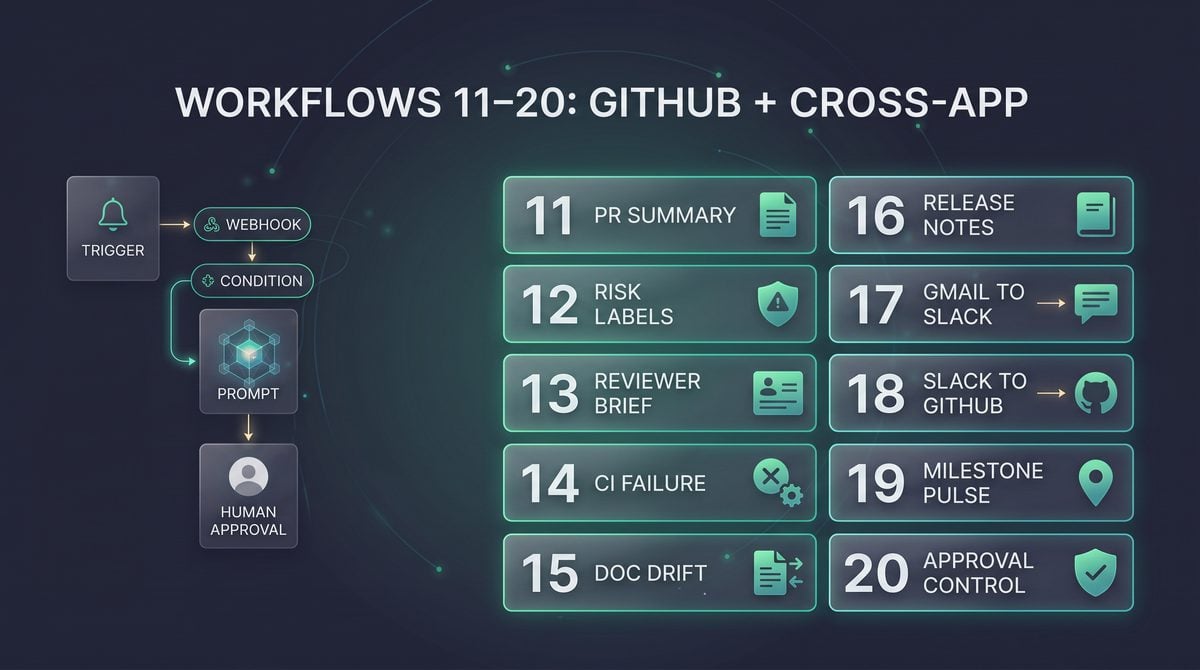
The next ten prompts move from single-message triage into engineering workflows where a webhook-triggered task may inspect GitHub pull-request activity, summarize Slack discussion, or convert a Gmail escalation into a reviewable team handoff. OpenAI’s event-triggered scheduled tasks can react to supported Gmail messages, Slack channel messages, and GitHub pull-request activity, but any consequential action should be treated as approval-gated: drafting a Slack reply, proposing a GitHub issue, suggesting labels, or preparing release notes is safe; posting, labeling, closing, assigning, or emailing should pause until a person confirms.
Use these prompts as task instructions in ChatGPT Work after connecting the relevant app under Settings > Apps and defining the Trigger / Condition / Prompt fields. For Slack workflows, remember that the monitored channel must have @ChatGPT added. For GitHub workflows, keep the repository scope narrow and use an authorized github.com repository. For noisy repositories or busy channels, add explicit conditions so the task does not consume the event-triggered task budget of up to 30 runs per hour and 720 runs per day across event-triggered tasks.
| Prompt | Primary trigger | Primary output | Approval rule |
|---|---|---|---|
| 11–16 | GitHub pull-request activity | Summaries, risk briefs, CI triage, docs drift checks, release-note drafts | Do not comment, label, request changes, merge, or publish without approval |
| 17 | Gmail message | Slack escalation draft | Pause before posting to Slack or replying by email |
| 18 | Slack channel message | GitHub issue proposal | Pause before creating the issue, assigning owners, or adding labels |
| 19–20 | Cross-app project signals | Coordination digest, unblock plan, stakeholder update draft | Draft only; require explicit approval for external writes |
11. GitHub pull-request executive summary for maintainers
Use this when: maintainers need a concise, repeatable summary whenever a pull request is opened, reopened, or updated. The goal is not to replace code review; it is to reduce the time reviewers spend reconstructing the purpose, touched areas, and likely review path from the raw diff.
Recommended trigger: GitHub pull-request activity in one authorized repository, limited to opened, reopened, ready-for-review, or synchronized pull requests. Exclude draft pull requests unless your team explicitly reviews drafts.
Trigger:
When a GitHub pull request is opened, reopened, marked ready for review, or updated in this repository.

Condition:
Run only if the pull request is not a draft and the changed files are available. Skip automated dependency-only PRs unless they modify application code, deployment configuration, or security-sensitive files.

Prompt:
Create a maintainer-ready pull-request summary. Include:
1. One-sentence purpose of the PR.
2. Files or directories most affected.
3. User-visible behavior changes, if any.
4. Operational changes such as config, deployment, migrations, permissions, or scheduled jobs.
5. Test evidence visible in the PR description, commits, or CI status.
6. Open questions reviewers should resolve before merge.

Do not approve, reject, merge, assign reviewers, add labels, or post a comment. Produce a draft summary that a maintainer can copy or approve for posting.

Output format:
- PR:
- Summary:
- Key changes:
- Review focus:
- Tests / CI:
- Questions before merge:
- Draft comment:
The GitHub Pull Request Automation decision in 25 ChatGPT Work Webhook Prompts for Gmail, Slack, and GitHub Automation is easier to apply when teams also understand How to Use OpenAI Codex for Automated Code Review: Setting Up PR Analysis, Security Scanning, and Performance Optimization Agents. That article focuses specifically on how to Use OpenAI Codex for Automated Code Review: Setting Up PR Analysis, Security Scanning, and Performance Optimization Agents, providing the adjacent implementation, comparison, or governance context needed to use this section without treating the two topics as interchangeable.
12. GitHub PR risk labeling proposal without automatic label changes
Use this when: reviewers want a consistent first-pass risk classification such as low, medium, high, migration, security-sensitive, or release-blocking. Applying labels changes repository state, so this prompt produces proposed labels only and requires approval before any label is added.
Recommended trigger: GitHub pull-request activity when a PR is opened or updated. Add conditions for files that commonly change risk, such as database migrations, authentication code, infrastructure-as-code, dependency manifests, payment flows, or permission checks.
Trigger:
When a GitHub pull request is opened or synchronized.

Condition:
Run only if the PR changes at least one source file, configuration file, migration file, dependency manifest, workflow file, or documentation file tied to a release.

Prompt:
Assess the PR for review-risk labeling. Propose labels but do not apply them.

Classify risk using only visible PR context:
- Low: small isolated change, tests or safe documentation update, no operational impact visible.
- Medium: multiple files, behavior change, dependency update, or moderate test uncertainty.
- High: auth, permissions, data handling, migrations, deployment, CI/CD, security-sensitive code, breaking API behavior, or unclear blast radius.
- Needs-docs: behavior changes without matching documentation updates.
- Needs-release-note: user-visible or operator-visible change.

For each proposed label, explain the exact evidence. If evidence is missing, say what should be checked manually.

Output format:
Risk level:
Proposed labels:
Evidence:
Manual checks:
Approval note: No labels have been applied. Pause for maintainer approval before changing repository labels.
Decision rule: if the task cannot tell whether a file is security-sensitive, it should propose “manual security review” rather than invent a guarantee. A conservative false positive is usually cheaper than a missed migration, permission, or deployment risk.
13. Reviewer brief routed by changed area
Use this when: a team wants reviewers to receive a compact brief tailored to the code area they own. The task should not assign reviewers automatically unless your organization has separately approved that behavior; the safer default is a draft reviewer brief.
Recommended trigger: GitHub pull-request opened or ready-for-review. Configure the task for one repository and describe your ownership map in the prompt, using directories rather than personal data where possible.
Trigger:
When a GitHub pull request is marked ready for review.

Condition:
Run only if the PR touches files under one or more known ownership areas.

Prompt:
Prepare a reviewer brief based on changed paths. Use this ownership map:
- /frontend or /web: Frontend reviewers
- /api or /server: Backend reviewers
- /infra, /.github/workflows, /deploy: Platform reviewers
- /docs: Documentation reviewers
- /db, /migrations: Data reviewers

Do not assign reviewers and do not post a GitHub comment. Draft a brief that the PR author or maintainer can approve.

Include:
1. Suggested reviewer groups by changed path.
2. Why each group is relevant.
3. Specific review questions for each group.
4. Any cross-team coordination needed.
5. A short draft message for the PR thread.

If the ownership map is insufficient, state what path or owner mapping is missing.

Output format:
Suggested reviewers:
Path evidence:
Review questions:
Cross-team notes:
Draft PR message:
Approval note: Reviewer assignment and posting are paused until explicit approval.
Practical example: if a PR changes /api/billing, /web/checkout, and /.github/workflows/release.yml, the brief should call out backend, frontend, and platform review instead of giving one generic “please review” message.
14. CI-failure triage for pull requests
Use this when: developers lose time scanning failed checks and logs after every update. The task should summarize visible CI status, group failures, and draft a diagnostic plan without rerunning workflows, pushing commits, or commenting automatically.
Recommended trigger: GitHub pull-request activity after updates, with a condition that visible checks are failing or pending beyond your team’s normal threshold. If your task cannot access detailed logs, require it to say so and summarize only the status available from the PR.
Trigger:
When GitHub pull-request activity indicates a check failure, or when a PR is updated and one or more visible checks are failing.

Condition:
Run only for non-draft PRs with at least one failed, cancelled, or repeatedly pending CI check.

Prompt:
Triage the CI failure using only available PR and check context. Do not rerun jobs, push commits, cancel workflows, post comments, or change PR status.

Produce:
1. Failed check names and current status.
2. Probable failure category: test failure, lint/type error, build failure, dependency/install issue, environment/flaky infrastructure, permissions/secrets, or unknown.
3. Evidence from available check names, messages, or changed files.
4. First three diagnostic steps for the PR author.
5. Whether the failure appears related to changed files or may be environmental.
6. A draft PR comment the author can approve.

If logs are unavailable, say “Detailed CI logs were not available to this task” and avoid guessing stack traces.

Output format:
CI triage:
Failure category:
Evidence:
Likely relation to PR:
Suggested next steps:
Draft comment:
Approval note: No workflow action or comment has been performed.
Operational warning: do not ask the task to include secrets, tokens, or private environment values from logs. If a failure appears related to credentials, the safe output is a manual escalation note to the repository owner or platform team.
15. Documentation drift detector for PRs
Use this when: product behavior, API shape, configuration, or operational procedures change faster than documentation. The task should detect likely drift and draft a documentation checklist, not edit docs or block the pull request automatically.
Recommended trigger: GitHub pull-request opened or synchronized. Run when changed files include public APIs, CLI behavior, configuration, migrations, feature flags, user-facing copy, or admin/operator workflows.
Trigger:
When a GitHub pull request is opened or updated.

Condition:
Run only if the PR changes behavior, configuration, API contracts, command-line usage, deployment instructions, permissions, or user-facing text.

Prompt:
Check for possible documentation drift. Compare the changed files and PR description against documentation files changed in the same PR.

Do not edit files, request changes, block the PR, or post a comment. Draft a documentation review note.

Include:
1. Behavior or operational change detected.
2. Documentation files updated, if any.
3. Documentation areas that may need updates.
4. Suggested doc owner or reviewer group, if inferable from paths.
5. A minimal checklist the author can complete before merge.
6. A draft PR comment.

If the PR only changes internal implementation with no visible behavior or operational effect, state that no documentation drift is apparent from available context.

Output format:
Detected change:
Docs touched:
Possible missing docs:
Checklist:
Draft comment:
Approval note: Do not post or request changes without reviewer approval.
Decision rule: a PR that changes defaults, error messages, onboarding steps, API responses, or deployment variables usually deserves at least a documentation check, even if the code diff is small.
16. Release-note drafting from merged or release-bound PRs
Use this when: release managers want release notes assembled from PR context without manually rewriting every merged change. Publishing release notes is an external communication, so the task should draft entries and pause before posting to GitHub Releases, Slack, email, or documentation.
Recommended trigger: GitHub pull-request activity when a PR is merged, labeled release-candidate, or added to a release branch. If label changes are not part of the supported trigger behavior in your setup, run this on merge activity and include label review as manual context.
Trigger:
When a GitHub pull request is merged or otherwise appears ready for release-note consideration.

Condition:
Run only if the PR has user-visible, operator-visible, API-visible, security-relevant, performance-relevant, or documentation-relevant impact.

Prompt:
Draft a release-note entry from the PR. Do not publish a release, edit a changelog, post to Slack, email stakeholders, or comment on GitHub.

Create:
1. Release-note category: Added, Changed, Fixed, Deprecated, Removed, Security, Documentation, or Internal.
2. Audience: end users, developers, operators, admins, support, or internal only.
3. Plain-language entry under 80 words.
4. Technical detail for maintainers, if useful.
5. Upgrade or migration note, if the PR indicates one.
6. Unknowns requiring release-manager review.

Avoid unsupported claims. If the PR does not show user-visible impact, recommend excluding it from public notes.

Output format:
Category:
Audience:
Draft release note:
Maintainer detail:
Migration / upgrade note:
Review questions:
Approval note: Publication and changelog edits require explicit approval.
Practical example: a database migration with no UI change may still need an operator-facing note if it affects deployment sequencing, rollback, or maintenance windows.
17. Gmail-to-Slack escalation draft for urgent customer or partner messages
Use this when: important Gmail messages should reach an operations, sales, support, legal, or engineering Slack channel quickly, but the automation must not post sensitive email content without review.
Recommended trigger: new Gmail message filtered by sender, subject keyword, or mailbox label. If multiple Google accounts are connected in ChatGPT, name the account context in the task instructions so personal and work messages are not mixed in the same escalation workflow.
Trigger:
When a new Gmail message arrives matching the configured sender, subject, or label filter.

Condition:
Run only if the message indicates urgency, customer impact, contract deadline, outage concern, security concern, executive escalation, or a blocked project dependency.

Prompt:
Prepare a Slack escalation draft based on the Gmail message. Do not send an email reply and do not post to Slack without approval.

Create:
1. One-line escalation title.
2. Recommended Slack channel or team, based on the message topic.
3. Sanitized summary that excludes unnecessary personal, financial, credential, or confidential details.
4. Requested action and suggested owner role.
5. Deadline or urgency evidence from the email.
6. Questions to answer before posting.
7. Draft Slack message.

If the email contains sensitive details, summarize only the operational need and recommend reviewing the original email before posting.

Output format:
Escalation title:
Recommended destination:
Sanitized summary:
Requested action:
Urgency:
Review questions:
Draft Slack message:
Approval note: Pause for approval before posting to Slack or replying by email.
Operational warning: do not use this prompt to move protected health information through unsupported workflows. Keep escalation drafts minimal and link humans back to the authorized system of record when sensitive context is required.
18. Slack-to-GitHub issue proposal from project channel discussion
Use this when: important bugs, feature requests, or follow-up tasks are discussed in Slack but never make it into the engineering backlog. Creating a GitHub issue changes repository state, so the task should produce a structured proposal and wait for approval.
Recommended trigger: new Slack channel message after @ChatGPT has been added to the relevant channel. Use channel-specific conditions such as messages containing “bug,” “regression,” “follow-up,” “action item,” “needs issue,” or a project tag.
Trigger:
When a new Slack channel message appears in the monitored project channel.

Condition:
Run only if the message or thread describes a reproducible bug, agreed follow-up, missing task, feature request, documentation gap, or operational problem that should be tracked in GitHub.

Prompt:
Draft a GitHub issue proposal from the Slack discussion. Do not create the issue, assign people, apply labels, or post back to Slack without approval.

Include:
1. Proposed issue title.
2. Problem statement.
3. Evidence from the Slack message or thread.
4. Reproduction steps, if present.
5. Expected behavior and actual behavior, if present.
6. Acceptance criteria or definition of done.
7. Proposed labels, with evidence.
8. Open questions before issue creation.
9. Draft Slack reply confirming the proposed issue.

If the Slack discussion is ambiguous, recommend asking a clarifying question instead of creating an issue.

Output format:
Proposed GitHub issue:
Problem:
Evidence:
Acceptance criteria:
Proposed labels:
Open questions:
Draft issue body:
Draft Slack reply:
Approval note: Pause for explicit approval before creating the GitHub issue or posting replies.
Decision rule: if the channel contains brainstorming rather than a decision, the task should draft a clarification question. Backlogs become noisy when every partial idea becomes an issue before scope, owner, and success criteria are defined.
19. Cross-app project coordinator for Gmail, Slack, and GitHub signals
Use this when: a project lead wants one coordination brief when a customer email, Slack decision, or GitHub PR changes the status of a project. This is a synthesis workflow: it should produce a private digest and draft next actions, not update systems automatically.
Recommended trigger: choose one primary event source per task to avoid ambiguous activation. For example, trigger on a Gmail escalation label, a Slack project-channel message, or GitHub PR activity, then instruct the task to summarize only the connected context available to it. Shared scheduled tasks create independent copies for recipients, so do not put sensitive customer or financial details in task titles or instructions.
Trigger:
When a monitored project signal arrives from the configured Gmail, Slack, or GitHub source.

Condition:
Run only if the event affects timeline, scope, customer commitment, release readiness, incident response, or an engineering blocker.

Prompt:
Prepare a cross-app project coordination brief. Use only connected app context available to this task. Do not post to Slack, send email, create or update GitHub issues, modify PRs, or change project status without approval.

Produce:
1. What changed.
2. Source event and why it matters.
3. Affected workstream: customer, product, engineering, release, support, legal, or operations.
4. Current blocker or decision needed.
5. Recommended next owner role.
6. Draft update for the project Slack channel.
7. Draft email reply if an external sender needs acknowledgment.
8. Draft GitHub comment or issue update if engineering tracking needs a note.

Sanitize sensitive details and mark any missing context that a human must verify.

Output format:
Coordination brief:
Source:
Impact:
Owner recommendation:
Next decision:
Draft Slack update:
Draft email reply:
Draft GitHub note:
Approval note: All external writes are drafts and must pause for explicit approval.
Practical example: if a customer emails about a deadline, a Slack thread confirms a scope change, and a PR is still failing CI, the useful output is a single “deadline at risk because CI is failing on release-bound work” brief with draft messages for each audience.
20. Release readiness checkpoint across PR, Slack, and stakeholder messages
Use this when: a release manager needs a disciplined checkpoint before shipping: merged PRs, open review risks, Slack decisions, and stakeholder commitments must align. The task should not declare a release approved; it should identify readiness evidence and blockers for a human release owner.
Recommended trigger: GitHub PR activity on release-bound pull requests, a Slack release-channel message, or a Gmail message from an approved stakeholder list. Pick the event that best represents your release process and keep the condition narrow enough to avoid duplicate checkpoint drafts.
Trigger:
When a release-bound GitHub PR changes, a release-channel Slack message is posted, or a stakeholder Gmail message matching the configured release filter arrives.

Condition:
Run only if the event references a release candidate, launch date, production deploy, rollback, release blocker, approval, or customer commitment.

Prompt:
Create a release readiness checkpoint. Do not publish release notes, send announcements, deploy, merge, close issues, update GitHub releases, post Slack updates, or email stakeholders without approval.

Assess:
1. Release item or project referenced.
2. Evidence of readiness from available context.
3. Evidence of risk or unresolved work.
4. CI, review, documentation, migration, support, and communication status if visible.
5. Stakeholders or teams that likely need to review.
6. Go / no-go recommendation as a draft decision aid, not an automated decision.
7. Draft Slack release-channel update.
8. Draft stakeholder email, if needed.
9. Draft GitHub PR or issue comment, if needed.

If evidence is incomplete, mark the checkpoint as “insufficient information” and list the required verification steps.

Output format:
Release checkpoint:
Readiness evidence:
Risks / blockers:
Verification needed:
Draft recommendation:
Draft Slack update:
Draft email:
Draft GitHub note:
Approval note: A human release owner must approve any external communication or release action.
Operational warning: release automation is where “helpful” can become dangerous. Keep this task in advisory mode unless your organization has a separately governed deployment process, because posting a go-live message, merging a PR, or updating release artifacts can create customer, compliance, and operational consequences.
Prompts 21–25: Executive, compliance, escalation, release, and quality-review workflows
The final five prompts are designed for operators who need a reviewable layer above Gmail, Slack, and GitHub activity rather than a fully autonomous agent. Each prompt uses the ChatGPT Work event-triggered task pattern documented by OpenAI: connect a supported app under Settings > Apps, describe the trigger and action in Work, review the generated Trigger / Condition / Prompt, and manage the task under Scheduled. Where the workflow could send a message, change a record, or otherwise affect another person, write the prompt so the task prepares a draft and pauses for human approval.
21. Executive digest from high-signal Gmail, Slack, and GitHub events
Use this when: a founder, chief of staff, engineering leader, or customer-facing executive needs a short daily or event-driven digest without reading every channel, thread, and pull request. This prompt is intentionally conservative: it asks for facts, links, unanswered questions, and proposed follow-ups, not decisions on behalf of the executive.
| Field | Recommended configuration |
|---|---|
| Trigger | New Gmail messages from priority senders, new Slack messages in leadership or incident channels after @ChatGPT is added, or supported GitHub pull-request activity in authorized repositories. |
| Condition | Run only when the event contains an executive-relevant signal: customer commitment, incident risk, blocked release, legal/commercial deadline, board/investor topic, or production-facing engineering risk. |
| Approval posture | Never send a digest externally without review. If posting to Slack or replying by Gmail, prepare a draft and wait for approval. |
You are preparing an executive digest from a ChatGPT Work event-triggered task.

Trigger source:
- App: {{app}}
- Event type: {{event_type}}
- Source location: {{sender_or_channel_or_repository}}
- Link or message reference: {{event_link}}

Condition:
Only produce a digest if the event contains one of these executive-relevant signals:
1. A customer, partner, investor, regulator, or senior internal stakeholder needs a response.
2. A delivery date, launch, incident, renewal, or contractual commitment is at risk.
3. A GitHub pull request changes release-critical, security-sensitive, billing, authentication, or data-handling code.
4. A Slack discussion records a decision, blocker, or escalation that needs leadership visibility.

Output:
Create a concise executive digest with:
- One-sentence headline.
- Why it matters in business or operational terms.
- Current owner, if visible from the event.
- Deadline or time sensitivity, if stated.
- Open questions.
- Recommended next action for a human reviewer.
- Source references only; do not infer facts not present in the event.

Do not send messages, assign work, approve pull requests, or make changes. If a follow-up is useful, draft it for approval.
Implementation note: keep the digest title neutral, such as “Executive digest candidate,” rather than embedding customer names, dollar amounts, or sensitive personal information. OpenAI’s event-triggered task sharing model allows shared-link viewers to read task titles and instructions, so sensitive material belongs in connected-app context and human-reviewed outputs, not in the reusable task metadata.
22. Compliance-safe metadata alert for sensitive workflow signals
Use this when: legal, compliance, security, finance, or operations teams need to know that a potentially sensitive workflow has appeared, but the automation should not copy confidential content into a broad channel. This is a metadata-first pattern: it reports that a review is needed and points an authorized person back to the original system.
Recommendation: do not use this prompt to process protected health information through unsupported webhook workflows. Keep the alert limited to routing metadata, severity, source reference, and reviewer instructions. The official event-triggered task documentation identifies supported sources and availability, but it does not turn every regulated data workflow into an appropriate automation target.
You are creating a compliance-safe metadata alert.

Trigger:
A new Gmail message, Slack channel message, or GitHub pull-request event appears in a monitored source.

Condition:
Run only when the event suggests one of these categories:
- Legal or regulatory review may be required.
- The message mentions credentials, secrets, tokens, access, permissions, deletion, export, retention, financial account details, or personal data.
- A GitHub pull request appears to affect authentication, authorization, encryption, audit logging, data retention, payment, billing, or user-identifying data.
- A Slack discussion requests an exception to a policy or access control.

Output rules:
- Do not quote sensitive body text.
- Do not include credentials, tokens, personal financial information, health information, private customer details, or confidential contract terms.
- Include only: source app, source location, timestamp if available, category, severity estimate, reason for review, and a link or reference to the original item.
- If the source is GitHub, include repository and pull-request number if available.
- If the source is Gmail, include sender domain only unless the sender identity is already appropriate for the reviewer group.
- If the source is Slack, include channel name and message link if available.

Prepare a reviewer alert for approval before posting or sending.
Operational warning: this prompt should not become a data-loss-prevention system by itself. It can help route events to reviewers, but it cannot replace organization policy, access controls, retention settings, or formal compliance tooling. For enterprise API systems that consume downstream outputs, administrators should separately evaluate transport and workload identity controls such as OpenAI’s generally available mutual TLS and X.509 workload identity federation for the API, noting that mTLS does not replace bearer authentication and X.509 federation for the OpenAI API is distinct from Codex support.
23. Customer escalation pack from Gmail or Slack signals
Use this when: support, success, sales, or account teams need a clean escalation brief before a human contacts the customer or opens an internal incident. The task should gather the visible complaint, classify urgency, identify missing information, and draft an internal handoff. It should not promise compensation, admit fault, disclose internal analysis, or send a customer response without approval.
| Escalation signal | Recommended condition | Human approval gate |
|---|---|---|
| VIP or strategic account email | Sender matches approved domain or sender filter in Gmail. | Required before any customer reply. |
| Slack support escalation | Message appears in a monitored support, sales, incident, or customer-success channel. | Required before posting to a broader channel. |
| GitHub-linked customer defect | Pull-request activity appears related to a customer-reported bug or rollback. | Required before merging, approving, or messaging external parties. |
You are preparing a customer escalation pack for human review.

Trigger:
{{trigger_description}}

Condition:
Run only when the event indicates a customer-impacting issue, urgent account concern, renewal risk, outage complaint, unresolved defect, security concern, or executive-level customer message.

Create an escalation pack with these sections:
1. Situation summary: two to four factual bullets based only on the event.
2. Customer or account signal: identify the customer, domain, or account reference only if visible and appropriate for the reviewer.
3. Severity proposal: Critical / High / Medium / Low, with one sentence explaining the classification.
4. Business risk: renewal, churn, contractual deadline, reputational concern, blocked deployment, or unknown.
5. Technical or operational clues: include GitHub PR references, Slack links, or Gmail thread references if visible.
6. Missing information: list questions a human should answer before responding.
7. Recommended owner: propose a role, not a specific person, unless the event clearly names an owner.
8. Draft internal handoff: write a concise message for the escalation channel.

Do not contact the customer, promise timelines, assign blame, approve code, or create external commitments. Any Slack post, Gmail reply, or GitHub comment must be presented as a draft for approval.
Example adaptation: for a customer-success team, the condition can restrict Gmail triggers to messages from named customer domains or subject lines containing “urgent,” “renewal,” or “production.” For a support engineering team, the Slack condition can restrict events to channels where @ChatGPT has been added and where escalation vocabulary is common. These filters help stay within the documented event-triggered task budget of up to 30 runs per hour and 720 runs per day across all such tasks.
24. Release readiness pulse from GitHub pull-request activity and team discussion
Use this when: engineering and product leaders want a lightweight readiness signal around a release branch, launch milestone, or deployment window. This prompt is not a substitute for CI, code review, security review, or release management; it produces a pulse report from visible GitHub and Slack signals so the release owner can decide what to inspect next.
You are producing a release readiness pulse for a human release owner.

Trigger:
Supported GitHub pull-request activity in {{repository}} or a new Slack message in {{release_channel}}.

Condition:
Run only when the event is related to:
- A release branch, release candidate, launch checklist, deployment window, rollback, blocker, CI failure, approval request, documentation update, or customer-impacting fix.
- A pull request labeled or described as release-bound, hotfix, migration, security, billing, authentication, infrastructure, or customer-critical.

Output:
Create a release readiness pulse with:
- Status: Green / Yellow / Red / Unknown.
- Evidence from the event: cite pull-request number, channel reference, or message link where available.
- Main risk: code, test, dependency, migration, documentation, approval, communication, or unknown.
- Blockers: list only blockers stated in the event.
- Follow-up questions for the release owner.
- Suggested next review action.
- Draft release-channel update, if useful, but do not post it without approval.

Rules:
Do not approve, merge, close, deploy, roll back, change labels, or notify customers. If a consequential action appears necessary, pause and request human approval.
Decision rule: mark the pulse Red only when the event explicitly identifies a blocker, failed required check, rollback, unresolved incident, or release-stopping approval gap. Mark it Yellow when uncertainty remains but no stop condition is visible. Mark it Unknown when the event is release-related but lacks enough evidence to classify readiness.
The AI Workflow Governance decision in 25 ChatGPT Work Webhook Prompts for Gmail, Slack, and GitHub Automation is easier to apply when teams also understand 3 Enterprise Security Checks Before Deploying ChatGPT Work — Data Governance, Access Control, and Audit Compliance. That article focuses specifically on 3 Enterprise Security Checks Before Deploying ChatGPT Work — Data Governance, Access Control, and Audit Compliance, providing the adjacent implementation, comparison, or governance context needed to use this section without treating the two topics as interchangeable.
25. Weekly workflow quality review for ChatGPT Work webhook tasks
Use this when: an operations lead wants to reduce noisy automations, stale prompts, and unsafe drafts. Because event-triggered tasks can run frequently, a weekly review prevents small prompt defects from becoming recurring distractions. This pattern can be triggered by a scheduled review process or by a Slack message in an operations channel asking for the weekly assessment.
You are conducting a weekly quality review of ChatGPT Work event-triggered tasks.

Scope:
Review the provided task names, recent outputs, reviewer feedback, false positives, missed events, approval pauses, and known incidents supplied in this conversation or connected context.

Assess each task across:
1. Trigger precision: Did it run for the right Gmail, Slack, or GitHub events?
2. Condition quality: Were false positives caused by vague wording?
3. Output usefulness: Did reviewers receive concise, actionable information?
4. Safety posture: Did the task avoid sending, posting, approving, merging, deleting, purchasing, or changing permissions without approval?
5. Metadata hygiene: Do titles and instructions avoid sensitive personal, financial, contractual, or regulated information?
6. Rate impact: Did the task consume too many runs relative to its value?
7. Ownership: Is there a named human role responsible for review and maintenance?
8. Sharing readiness: Could the task be safely shared as an independent copy without exposing sensitive instructions?

Output:
Create a weekly workflow quality report with:
- Top three tasks to keep unchanged.
- Top three tasks to revise.
- Tasks to disable or narrow.
- Suggested trigger or condition edits.
- Approval-gate corrections.
- Open questions for administrators or process owners.

Do not change task settings directly. Provide recommendations for a human administrator.
Recommended cadence: run this review weekly during rollout, then monthly once false positives stabilize. For high-volume Slack channels or active repositories, review earlier if reviewers begin ignoring task outputs, because alert fatigue is a practical safety failure even when every individual message is accurate.
Implementation guidance for reliable webhook prompt operations
Test in narrow sources before expanding
Start each task with the smallest practical trigger: one Gmail sender or subject filter, one Slack channel where @ChatGPT has been deliberately added, or one authorized GitHub repository. Validate the first ten to twenty outputs manually and record whether each run was useful, noisy, incomplete, or unsafe. If the task produces drafts for Slack posts, Gmail replies, GitHub comments, or other consequential actions, confirm that the workflow pauses for approval rather than executing automatically.
A practical test plan should include positive examples, negative examples, and edge cases. For Gmail, send test messages with similar subject lines that should and should not trigger the task. For Slack, post a real escalation phrase and a casual mention of the same keyword to see whether the condition separates intent from chatter. For GitHub, test pull requests that change release-critical files and pull requests that only adjust comments or formatting.
Design for documented run limits and reviewer attention
OpenAI’s event-triggered task documentation states that these tasks can run up to 30 times per hour and 720 times per day across all event-triggered tasks. Treat that ceiling as both a system limit and a human-attention budget. A task that fires on every message in a busy Slack channel will waste runs and train reviewers to ignore outputs; a task that filters by channel, keyword, sender, repository, or risk category is more likely to produce decisions.
Use conditions to reject low-value events before the prompt writes a full report. Prefer “run only when the message requests a decision, names a blocker, mentions a customer-impacting incident, or references a release deadline” over “summarize this channel.” For GitHub, prefer repository and pull-request activity filters tied to release, security, billing, authentication, infrastructure, or customer-critical paths rather than every pull-request update.
Account for sharing behavior and connected-app boundaries
Shared scheduled tasks create independent recipient copies. OpenAI’s documentation says sharing does not expose the creator’s identity, chat history, previous results, memories, custom instructions, files, connected-app data, or credentials; recipients use their own permissions and connected apps. This makes sharing useful for template distribution, but it also means a recipient’s copy may behave differently if they lack access to the same Gmail account, Slack channel, or GitHub repository.
Before sharing a task, remove sensitive names, customer details, financial information, access tokens, and private incident language from the title and instructions. Put organization-specific routing details into a local setup checklist rather than a public reusable prompt. Ask recipients to review Trigger / Condition / Prompt after connecting their own apps, because the copied task is not a centrally managed automation with inherited credentials.
Make outputs auditable without inventing an audit system
A prompt can support auditability by including source references, event type, repository, channel, sender domain, pull-request number, and the proposed human action. It should not claim that ChatGPT Work creates a compliance archive unless your organization has separately configured one. If audit retention is required, route approved outputs into your existing ticketing, incident, change-management, or records system through a human-reviewed process.
For sensitive workflows, require the output to distinguish facts from recommendations. A useful format is “Observed,” “Inferred risk,” “Missing information,” and “Recommended next step.” This separation helps reviewers see when the model is summarizing evidence versus proposing an operational response.
Plan for failures, pauses, and stale assumptions
Failure handling should be explicit in every serious task. If a connected app is unavailable, a recipient lacks access, a GitHub repository authorization changes, or a Slack channel no longer includes @ChatGPT, the expected result should be a visible review gap rather than silent reliance on automation. Maintain a fallback procedure for urgent issues, such as a human-monitored escalation inbox or channel.
Review prompts after organizational changes. A renamed Slack channel, new release repository, changed compliance policy, or updated customer escalation path can make a previously safe task incomplete. If a task repeatedly pauses for approval on routine drafts, decide whether the action truly needs automation or whether a better output is a decision brief that a human sends manually.
Conclusion
ChatGPT Work webhook prompts are most valuable when they convert supported Gmail, Slack, and GitHub events into structured, reviewable work products: briefs, alerts, escalation packs, readiness pulses, and quality reports. The safest operating model is not “let the task decide,” but “let the task notice, organize, and draft while humans approve consequential actions.” With narrow triggers, explicit conditions, metadata discipline, rate-aware design, and regular quality review, these 25 prompts can become practical building blocks for dependable workflow automation.
Access 40,000+ AI Prompts for ChatGPT, Claude & Codex — Free!
Subscribe to get instant access to our complete Notion Prompt Library — the largest curated collection of prompts for ChatGPT, Claude, OpenAI Codex, and other leading AI models. Optimized for real-world workflows across coding, research, content creation, and business.
Useful Links
- OpenAI Help: Scheduled tasks and event-triggered tasks in ChatGPT Work
- OpenAI Help: ChatGPT release notes
- OpenAI: Product release notes
- OpenAI Help: Importing plugin marketplaces from GitHub repositories
- OpenAI Learn: Enterprise plugin management
- OpenAI Developers: Mutual TLS guide
- OpenAI Developers: X.509 workload identity federation guide
